BlogImage Compression

How to Compress Private Images Without Uploading to a Server

Compress private images without uploading them. Learn local browser, desktop, and JavaScript options, plus a checklist to verify your file stays on your device.

Updated: June 29, 2026

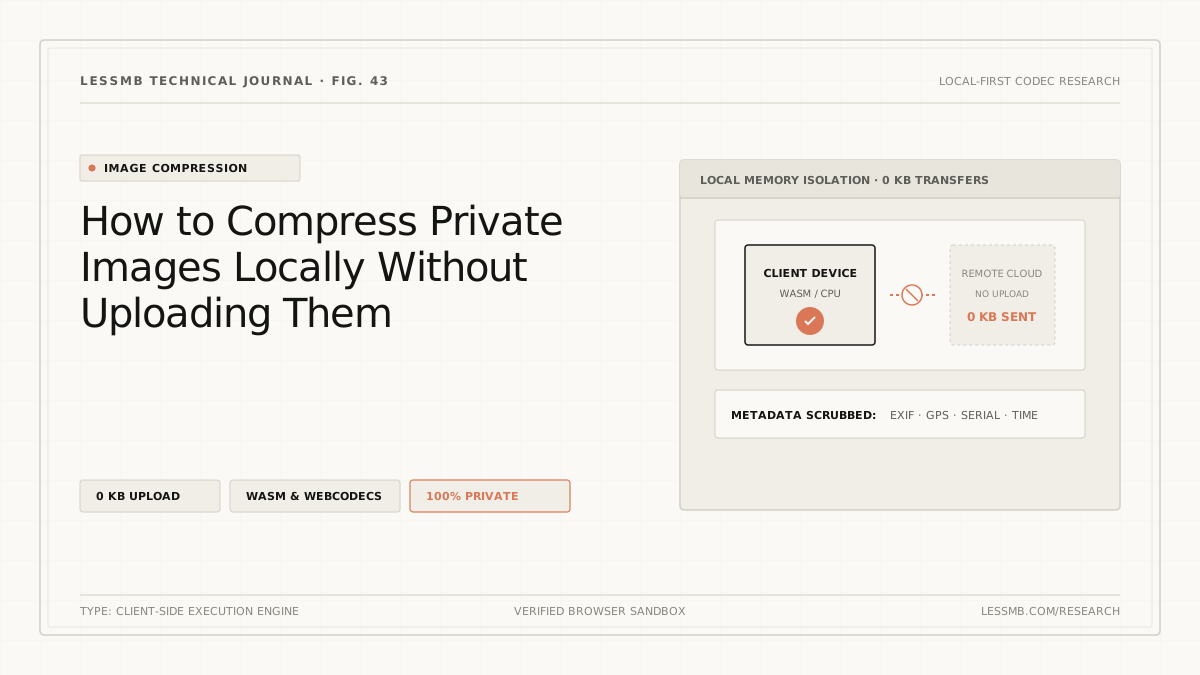
Yes, you can compress private images without uploading them — if you use a verified client-side or offline tool. In that workflow, your browser or desktop app reads, resizes, and re-encodes the image on your own device instead of sending the file to a remote server. The safest way to confirm this is to test the tool: open DevTools, watch the Network tab while compressing, and repeat the test with the internet disconnected. This guide explains your local compression options, how to choose between JPEG, WebP, AVIF, and PNG, how to remove EXIF metadata before sharing sensitive images, and how to build a practical verification habit.

Key Takeaways

  • Client-side compression keeps pixels on your device; verification is required because "private" marketing claims are not auditable without a test.
  • Use the DevTools Network tab and an offline test to confirm any tool is processing locally — this is a strong signal, not a full security audit.
  • Browser tools built on WebAssembly and the Canvas API (such as Squoosh) can compress images without a network connection.
  • JavaScript libraries like browser-image-compression let developers shrink images in the user's browser before they are ever transmitted.
  • Desktop apps (ImageOptim, Caesium) compress entire folders with no internet connection at all.
  • Always strip EXIF/GPS metadata explicitly for sensitive images — compression alone does not reliably remove it.

Why Compressing Without Uploading Matters

Most free compressors are server-based: you pick a file, it travels to a company's infrastructure, is compressed there, and is returned to you. That is fine for a throwaway screenshot. It is the wrong approach for a passport scan, a medical record, a contract, or a personal photo whose embedded GPS data reveals your home address.

Three concrete risks make the difference:

  1. Embedded metadata. Phones and cameras write EXIF data into image files — camera model, timestamp, and GPS coordinates that can indicate where a photo was taken. A server that receives the file has access to that data, at least temporarily.
  2. Server retention. Even "we delete your file after an hour" policies depend on the provider's implementation and backup practices. Once bytes leave your device, you have lost direct control over them.
  3. Unclear data handling. Some tools may involve analytics pipelines, third-party infrastructure, or retention policies that are not fully disclosed. With sensitive images, you cannot audit what happens after upload.

The fix is structural: keep the image on your device in the first place.

How Client-Side Compression Actually Works

Modern browsers can run near-native-speed code through WebAssembly (Wasm). Image encoders originally written in C or Rust — MozJPEG, OxiPNG, libwebp, and AV1-based AVIF encoders — can be compiled to Wasm and executed inside the page. The browser also exposes the Canvas API (for decoding, resizing, and reading pixels) and Web Workers (for moving heavy computation off the main thread so the page stays responsive). Together, these technologies make a compression pipeline that never touches the network:

StepWhere it happensData leaves the device?
File read into memoryBrowser File APINo
Image decoded to pixelsCanvas or Wasm decoderNo
Resize / quality adjustmentCanvas or Wasm encoderNo
Re-encoded to JPEG / WebP / AVIFWasm codec in a Web WorkerNo
Result saved to diskBrowser downloadNo

Contrast this with a server-based tool, where every step after "file read" happens on someone else's machine.

Three Ways to Compress Images Locally

ApproachExample toolsBest forUploads your file?Verification needed?
In-browser toolSquooshOne-off images, quick workflowNo (verify with checklist)Yes — run DevTools + offline test
JavaScript librarybrowser-image-compression, Compressor.js, picaDevelopers building appsNoCode is auditable
Desktop appImageOptim, Caesium, FileOptimizerBulk folders, fully offlineNoNo network connection possible

Browser Tools to Verify Before Using With Private Images

Squoosh (squoosh.app) is the reference implementation. Built by GoogleChromeLabs (github.com/GoogleChromeLabs/squoosh), it runs codecs such as MozJPEG, OxiPNG, WebP, and AVIF as WebAssembly modules entirely in your browser — check the current GitHub README for the exact codec list, as it may change between releases. A before/after slider lets you compare quality at any zoom level. Because Squoosh is a Progressive Web App, you can install it and compress images with no internet connection — a strong, testable privacy signal. The source code is open, so the "no upload" claim is auditable rather than just a promise.

Not every site that uses the words "private" or "secure" actually processes files locally. Some marketing pages use those terms while still uploading to a server. That is exactly why the verification checklist further below matters more than any feature list or badge.

For everyday file-size reduction — resizing images for email, web, or documents — LessMB can fit into a quick compression workflow. As with any browser-based tool you plan to use for sensitive files, run the verification checklist in this guide before relying on it for private images.

Privacy Claims vs. What You Can Actually Verify

Claim you might seeWhy it is not enough on its ownHow to verify
"We never store your files"Depends on provider honesty and backup policyDevTools Network tab — no large upload?
"Files are deleted after X minutes"Upload still occurred; retention is unauditableOffline test — still works without internet?
"SSL / encrypted upload"Encrypts transit, does not prevent server processingSource code review or open-source audit
"Client-side" or "local"Marketing language; needs a technical testDevTools + offline test
"Private" or "secure" badgeNo standard definitionCombine DevTools, offline test, and source review

Compressing Images With a Few Lines of JavaScript

If you are building an app or want full control, a client-side library does the job in roughly ten lines. browser-image-compression is the most widely used option: it accepts a File, does the work in a Web Worker so the UI never freezes, and returns a compressed File.

import imageCompression from "browser-image-compression";

async function compress(imageFile) {
  const options = {
    maxSizeMB: 1,            // cap the output at 1 MB
    maxWidthOrHeight: 1920,  // cap the longest edge
    useWebWorker: true,      // keep the UI responsive
    initialQuality: 0.8,
  };
  return await imageCompression(imageFile, options);
}

Because this runs entirely in the browser, you can shrink images before they are ever transmitted — which also reduces bandwidth and storage costs on your backend. Two capable alternatives serve different needs: Compressor.js for finer output control, and pica for high-quality, resize-heavy work driven by the Canvas API.

Desktop Apps for Bulk, Fully Offline Compression

When you have a folder of images — a batch of scanned pages or photos — a desktop app is the most private option because it requires no network connection at all. Check each app's documentation for metadata-stripping behavior, as it varies:

  • ImageOptim (macOS) — open-source local compression with MozJPEG, OptiPNG, and related tools; includes explicit metadata stripping options.
  • Caesium Image Compressor (Windows / macOS / Linux) — offline desktop app designed for batch compression with adjustable quality settings.
  • FileOptimizer (Windows) — local recompression across multiple file types.
  • ExifTool (cross-platform, command line) — the definitive tool for inspecting and removing EXIF/GPS metadata precisely.

For a quick metadata check without extra software: on macOS, Preview → Tools → Show Inspector (⌘I) lets you view and delete location data; on Windows, File Properties → Details → "Remove Properties and Personal Information" does the same (see Microsoft Support for current steps).

Which Image Format Should You Use?

Format choice often has a larger impact on file size than any quality slider.

FormatTypeBest forRelative size vs. JPEGTransparencyNotes
JPEGLossyPhotosBaselineNoUse MozJPEG encoder for smaller files
PNGLosslessGraphics, text, screenshotsOften larger for photosYesKeep only where needed
WebPLossy or losslessGeneral-purposeOften smaller than JPEG for photosYesBroad browser support; Google's WebP documentation describes typical savings
AVIFLossy or losslessModern photosOften further savings over WebPYesCan encode more slowly; verify target platform accepts it

Practical rule: use AVIF or WebP when your target platform supports them, fall back to MozJPEG, and reserve PNG for graphics that need sharp edges or transparency. For text-heavy document scans, compare PNG, WebP lossless, or a lighter lossy setting and inspect the result at 100% zoom — heavy JPEG compression makes text edges blurry.

How to Verify a Tool Really Stays on Your Device

Run this checklist once on any tool before trusting it with a private image:

  1. Open DevTools. In Chrome, Edge, or Firefox press F12 (or Cmd+Opt+I on Mac) and select the Network tab.
  2. Clear the request list so the view is empty before you begin.
  3. Add your image. Drop or select the image in the tool.
  4. Watch for an upload. If compression is truly client-side, you will see no large outgoing POST or PUT request carrying your file. A few kilobytes of analytics is different from an entire image upload — judge by request size and payload type.
  5. Run the offline test. Disconnect from the internet (turn off Wi-Fi or unplug Ethernet) and compress another image. A local tool keeps working; a server-based tool fails immediately. This is a strong practical signal, not a full security audit.
  6. Check the source when possible. Open-source projects let you confirm "no upload" by reading the code — far stronger than a marketing badge.

Quick mental model: if the tool works with the internet unplugged, your image very likely stayed on your device.

Before Sharing Sensitive Images: Checklist

  • Compress a copy, not your only original
  • Remove EXIF/GPS metadata explicitly (ImageOptim, ExifTool, or OS built-in tools)
  • Inspect the compressed file at 100% zoom — faces and text should still be legible
  • Run the DevTools Network verification on the tool you used
  • Confirm the tool still works with the internet disconnected
  • Keep the original file stored only on a trusted, offline-capable device

Recommended Workflow by Image Type

Image typeRecommended approachNotes
Passport / ID scanOffline desktop app (ImageOptim, Caesium) + explicit EXIF removalNever use an unverified online tool
Medical or legal documentOffline desktop app or verified local browser toolRun full checklist
Personal photo with GPSDesktop app with metadata stripping, or verified browser toolRemove EXIF before compressing
Social / website imageAny verified browser tool or JS libraryLower sensitivity; still worth verifying
Bulk folderDesktop app (batch mode)Fastest; no network required

Common Mistakes to Avoid

  • Trusting the word "private." A badge or SSL lock says nothing about whether your file is uploaded. Verify with DevTools.
  • Forgetting EXIF/GPS. A shrunken JPEG may still carry precise location data. Strip metadata explicitly for anything sensitive.
  • Using heavy lossy compression on text or scans. Documents degrade visibly under aggressive JPEG settings. Use PNG, WebP lossless, or a lighter setting, and check at 100% zoom.
  • Downscaling too aggressively. A tiny file is useless if faces or text become unreadable. Always review the output at full size.
  • Recompressing repeatedly. Each lossy pass costs quality. Always compress from the original.

FAQ

Can image compression really happen without uploading the file?

Yes, if you use a verified client-side or offline tool. The browser or desktop app reads, resizes, and re-encodes the image on your own device using technologies such as WebAssembly, the Canvas API, and Web Workers. Verify the behavior with the DevTools Network test and an offline test before relying on any tool for sensitive images.

How do I verify a tool does not upload my images?

Open your browser's DevTools, go to the Network tab, and drop an image in. If you see no large outgoing request, and the tool continues to work with your internet disconnected, it is processing locally. This offline test is a strong practical signal, not a complete security audit.

Do server-based image compressors upload my files?

Yes. Server-based compressors receive your file, process it on remote infrastructure, and return the result. They are convenient for ordinary images but are not suitable for sensitive or private files where you cannot audit retention and handling practices.

Does compressing an image remove EXIF metadata?

Not reliably. Re-encoding to a smaller JPEG may strip some metadata, but this is not guaranteed. To be certain, remove it explicitly using a dedicated tool such as ImageOptim, ExifTool, or the metadata removal options built into macOS Preview or Windows File Properties.

Which image format produces the smallest file?

AVIF often compresses smaller than WebP and JPEG at equivalent quality for photos, but it can encode more slowly and may not be accepted by every upload target. WebP is a strong general-purpose choice. Use PNG only for graphics that require sharp edges or transparency.

Can I compress private images on my phone without uploading?

Yes. On iOS, the Shortcuts app can resize and export images locally. On Android, apps such as Lit Photo or Photo Compress process images on-device. Alternatively, open a verified PWA browser tool such as Squoosh in your mobile browser and confirm it compresses correctly in offline mode before handling sensitive files.

Is turning off Wi-Fi enough to prove a tool is private?

It is a strong practical signal. A tool that compresses correctly with the internet disconnected is very likely processing on your device. However, it is not a full security audit — some apps may queue data or behave differently when reconnected. For highest assurance, also inspect the Network tab during compression and, where possible, review the source code.

Should I use JPEG, WebP, AVIF, or PNG for document scans?

For text-heavy scans, compare PNG, WebP lossless, or a lighter lossy setting and inspect the output at 100% zoom. Heavy JPEG compression makes text edges blurry. AVIF is worth testing but verify your target platform accepts it before committing to it.

References